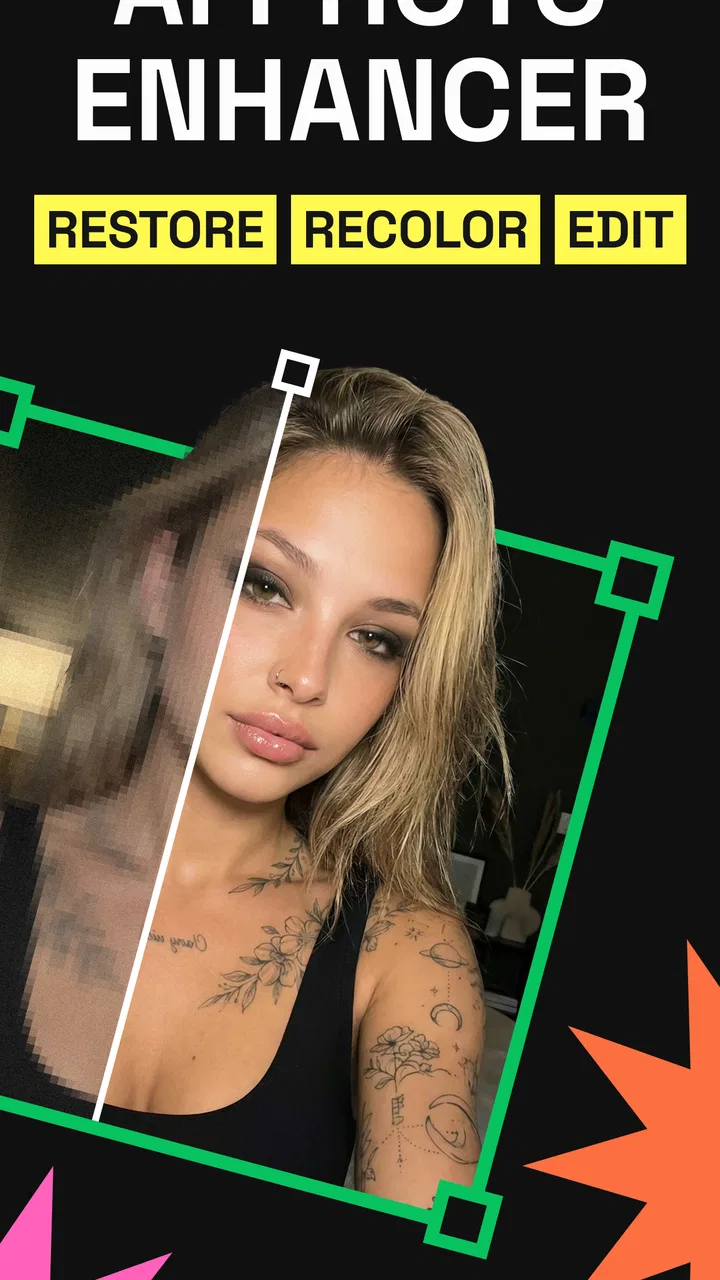
PhotoApp - AI Photo Enhancer
- 4.2
- Rating
- 10.00M
- Installs
- Free
- Price
 Analysis by App-foxy
I approached PhotoApp as the kind of tool you open when an important picture is not quite usable: an old family image with soft details, a portrait that needs cleaning up, or a shot that looks less clear than it did on the phone screen. Developed by ScaleUp, this free photography app focuses on AI-assisted enhancement rather than acting as a complete photo editor. That distinction matters. It is most useful when the main problem is clarity, not when you want to build a full composition from layers, masks, typography, and detailed manual adjustments.
My overall impression is positive, but I would not treat it as magic. AI enhancement can make a photo look more presentable, especially when the original is only mildly blurry or compressed. It cannot reliably recover detail that was never captured, and some results can look overly smooth or artificial when the source is extremely small. The best way to use PhotoApp is as a focused repair step, followed by a quick visual check at the size where you actually plan to share or print the image.
How PhotoApp feels when you use it for real photo repairs
I find PhotoApp most useful when I treat each repair as a small, reversible experiment rather than trusting a sharper preview at first glance. In this section, I’ll look at how to choose a promising source, compare the result without losing the original, and spot when the app’s interpretation stops being faithful. That practical distinction sets up what a first-time user should expect from the app.
You May Also Like

 Google Keep - Notes and lists
Google Keep’s Quiet Growth Shows the Appeal of Simpler Notes
As mobile work gets busier, Google Keep keeps winning a simple contest: capture a thought quickly, find it later, and get on with the day.

 Blood Strike: 2.5 Anniversary
Blood Strike’s Loadouts Turn Every Drop Into a Tactical Gamble
A close look at Blood Strike’s custom loadouts: how fast access to signature weapons reshapes its battle royale rhythm, rewards preparation, and narrows the gap between fights.

 Pandora - Music & Podcasts
Pandora’s Music Is Easy to Start, but Harder to Recover
Pandora’s strength is its low-effort path from a seed to a station. Its weak spot is how much confidence it asks you to place in connection, setup, and quiet recovery.

 8 Ball Pool
 Is Built on Rivalries, Rematches, and Routine
A close look at the rivalries, rematches, shared routines, and unanswered safety questions that turn a quick pool match into a persistent mobile community.

 Samsung Music
’s Quiet Strength Is Playing What You Already Own
Its reach comes less from spectacle than from dependable access to a personal library. That simplicity is both the app’s strongest retention engine and its ceiling.

 AccuWeather: Weather Radar
AccuWeather Review: A Quick, Clear Forecast for Everyday Decisions
For everyday plans, the best forecast is the one you can understand quickly. AccuWeather makes rain timing, radar, and local conditions easy to act on, with a few trade-offs.
More From Our News Desk



What the app is designed to do
The app’s store summary points directly to its purpose: improving photo quality with AI and restoring or unblurring older images. In practical terms, that makes it appealing for photos that are recognizable but lack crispness. I would put a slightly soft scan, a faded-looking family snapshot, or a portrait affected by ordinary camera shake in its comfort zone. It is less suitable as the only editor for a carefully staged social post because enhancement is only one part of that workflow.
PhotoApp is free to install and is marked for Everyone, so it is easy to approach without committing money immediately. The app includes optional purchases ranging from $2.49 to $199.99 per item, which is an important detail to keep in mind before treating it as a regular restoration service. I would first test the kind of images I actually care about, then decide whether the paid path offers enough value for my habits.
The short store label, “PhotoApp,” is unusually plain, while the more useful description explains the AI restoration angle. That tells me the name is not the important part of the experience; the workflow is. You open it because a particular image needs help, not because you are looking for a broad camera replacement or a full creative suite.
Speed expectations: why the source image matters
AI processing should be judged differently from a simple crop or brightness adjustment. A conventional edit usually responds immediately because it is changing a small set of visual properties. Enhancement has to analyze the image and create a new interpretation of its details, so the perceived speed can vary with the image, the device, and the amount of processing involved. I would not choose this app expecting every result to appear as quickly as a basic filter.
A useful habit is to prepare the photo before sending it through enhancement. Crop away unrelated borders, rotate a sideways scan, and use the clearest copy you have. This does two things: it gives the processing a more focused subject and makes the final comparison easier. Sending a whole screenshot with menus, empty margins, and a tiny face inside it is usually a poorer test than isolating the actual photograph first.
For an everyday task, such as cleaning up one image before sharing it with a relative, the waiting time is less important than whether the result looks natural. I would start the process, avoid repeatedly tapping the same control, and inspect the finished image at normal viewing size before deciding whether to keep it. Repeated attempts on the same weak source may consume time without producing genuinely new information.
Heavy-use moments and the limits of batch thinking
PhotoApp makes the most sense for selective restoration rather than a large archive project. If you have a handful of meaningful pictures, you can review each result carefully and reject the ones where the AI invents texture or changes a face. If you have a box of old photographs to digitize, the bottleneck is not only processing; it is also scanning, organizing, checking, and comparing every output.
That is where I would be cautious about turning the app into a bulk workflow. A restoration tool is only helpful when you can verify its decisions. With old images, scratches, dust, faded contrast, and unusual lighting can be interpreted in different ways. Processing everything automatically may save taps but create a second job: sorting through images that look sharper yet less faithful.
One practical workflow is to make three groups before enhancement: images that are already clear, images that are soft but still readable, and images that are severely damaged or tiny. The middle group is the strongest candidate for an AI enhancer. The first group may need no processing, while the last group should be treated as an experiment rather than a guaranteed rescue. This simple sorting step prevents wasted effort and keeps expectations realistic.
A realistic family-photo scenario
Imagine finding an old picture of a grandparent in a drawer. The scan is slightly blurred, the face is small, and the background contains a lot of paper texture. I would crop the scan to preserve the person and enough surrounding context, then run the enhancement once. Afterward, I would compare the eyes, hairline, clothing edges, and background—not just the overall impression.
If the face becomes clearer without changing its character, the result may be useful for a digital album or a private message. If the eyes become unnaturally sharp or the skin turns waxy, I would keep the original and possibly use a lighter conventional edit instead. For a sentimental image, faithfulness is more valuable than maximum apparent detail. This is one of the most important trade-offs with AI restoration: a sharper picture is not automatically a truer picture.
For sharing, I would also check the image on the device where the recipient will see it. A result that looks impressive when zoomed in can appear strange at normal size, while a modest improvement may be perfectly good in a chat or family album. The final use should decide whether the enhancement is successful.
Reliability: judging results instead of trusting the preview
The app’s popularity gives it a reassuring level of visibility: it has passed ten million installs, carries a 4.2 average from around 474 thousand ratings, and has roughly 3.7 thousand written reviews. Those figures suggest that many people find the basic idea useful, although they do not guarantee that every image will produce the same quality. AI tools are especially dependent on the material they receive.
I consider a result reliable when it improves clarity without changing identity, text, or important edges. Faces deserve extra scrutiny because enhancement systems can smooth skin, reshape small features, or add convincing-looking detail that was not present. Text is another warning area. If you are trying to rescue a photograph of a document, inspect every letter manually; apparent sharpness does not prove that the wording is accurate.
Recovery is also part of reliability. Before processing an irreplaceable photo, I would keep the original copy untouched and work from a duplicate. That way, an unsatisfying result is only a failed experiment, not a permanent replacement. I would also avoid judging the first preview too quickly if the interface is still completing its work. Save or share only after checking the full image, including corners and background details.
When an output looks wrong, the best recovery is usually to return to the source rather than endlessly applying more enhancement. Try a cleaner crop, a better scan, or a less damaged copy. Stacking multiple AI passes can exaggerate halos, plastic-looking surfaces, and invented textures. In my view, one careful pass is a safer starting point than repeatedly processing the processed image.
Device constraints and the Android requirement
PhotoApp’s current version is 2.9.5 and it supports Android 7.0 or later. That gives it a broad potential device range, but an operating-system requirement is not the same as a promise of identical performance on every compatible phone. Older hardware may feel less comfortable during demanding image work, particularly when handling large photographs or several edits in succession.
For a smoother experience, I would close unrelated apps before working on a collection, keep the phone from becoming unusually hot, and avoid starting a long restoration session when the battery is already low. These are sensible precautions for image processing in general, but they matter more here than they would for a basic gallery viewer because the app is asking the device to analyze and rebuild visual information.
Storage is another practical consideration. Keep the original and the enhanced copy until you have decided which one to retain. That is good photo practice, but it also means a restoration session can require more space than expected. If you are working with scans, consider making a clearly labeled working copy rather than repeatedly exporting versions with ambiguous names.
I would be especially careful on an older phone with limited free space. Even when the app itself installs normally, the photos you import and the results you keep can become the real storage burden. A small, organized test set is a better first step than importing an entire archive. It also makes it easier to tell whether the device is coping comfortably before you invest time in a larger project.
Where it compares well with ordinary alternatives
Compared with a standard gallery editor, PhotoApp offers a more direct answer to softness and low apparent detail. Gallery tools are excellent for cropping, rotating, adjusting exposure, and making a photo look brighter, but those controls do not attempt the same kind of reconstruction. If the problem is simply that the image is dark, a normal editor may be quicker and more predictable. If the problem is mild blur or an old scan that needs more definition, an AI enhancer is the more relevant tool.
Compared with a full professional editor, PhotoApp is easier to approach but less precise. A desktop editor or advanced mobile suite gives you greater control over sharpening, noise reduction, masks, curves, and selective corrections. That control is valuable when the image is important, the color must stay accurate, or you need to correct one area without affecting another. PhotoApp is better for a fast, focused attempt when you do not want to learn a complex editing system.
Compared with simply applying a sharpness filter, the AI approach can produce a more noticeable change on suitable portraits and older photos. The trade-off is that a basic filter is easier to understand: it exaggerates existing edges, while AI enhancement may reinterpret them. I would choose the simpler option for documents, product details, or any image where factual accuracy matters more than visual polish.
Who should use it—and who should skip it
I can recommend PhotoApp to someone who has a small set of blurry or aged pictures and wants an approachable first attempt. It is also a sensible option for people who do not want to learn a complicated editor just to improve a portrait before sending it to family. The free entry point makes testing straightforward, while the Everyone age rating keeps the app broadly accessible.
I would be more reserved for professional photographers, archivists, and anyone restoring historically important images. They may need transparent, repeatable adjustments and the ability to document exactly what changed. An AI result can be visually pleasing while still being unsuitable as a faithful record. For those users, a more controlled editing workflow is the better choice, even if it takes longer.
I would also skip it when the original is severely underexposed, heavily compressed, or so small that the subject is barely recognizable. Enhancement can improve presentation, but it cannot reliably reconstruct a missing expression, an unreadable sign, or an important object that was never captured. In that situation, the honest result may be a cleaner-looking guess rather than a restoration.
Costs, expectations, and a sensible first test
Because the app is free, I would begin with non-critical images and learn how its results look on my own phone. The in-app purchase range is wide, from $2.49 to $199.99 for an item, so I would pay close attention to the purchase screen and understand what is included before confirming anything. I would not assume that paying automatically fixes the weaknesses of a poor source image.
My first test would use three different photos: a mildly soft portrait, an old scan with visible fading, and a very small image that I do not mind sacrificing as an experiment. I would compare each enhanced result against the untouched original at normal size and at a closer view. This reveals whether the app is improving useful detail or merely increasing the impression of sharpness.
A further tip is to judge skin, hair, printed letters, and straight lines separately. These areas expose different problems. Skin can reveal over-smoothing, hair can reveal invented strands, letters can reveal false reconstruction, and straight lines can reveal halos or unnatural edges. Looking only at the center of a face is not enough to decide whether an enhancement is genuinely successful.
My performance verdict
PhotoApp is a focused photography app with a clear purpose: give soft, old, or blurred images a chance to look more usable. In my experience, its value depends less on processing a large number of pictures and more on choosing the right candidates, preserving the originals, and checking the result with a skeptical eye. That approach makes it feel practical rather than gimmicky.
The app should not be judged like a full editor or a professional restoration workstation. Its advantage is convenience; its weakness is limited control over what the AI decides to invent, smooth, or emphasize. Speed can be perfectly acceptable for occasional repairs, but heavy sessions may be less comfortable on older Android hardware, and large collections demand more storage and more human checking than the simple premise suggests.
ScaleUp’s app is worth trying if your goal is to improve a few personal photos without learning a complicated editing suite. I would keep the original beside every result, avoid repeated enhancement passes, and treat the paid options carefully. If you value quick experimentation and can accept that some images will need to be rejected, PhotoApp is a useful addition to a mobile photo toolkit; if accuracy and fine control come first, a conventional editor remains the safer choice.
FAQs for PhotoApp - AI Photo Enhancer
01What features does PhotoApp - AI Photo Enhancer offer?
PhotoApp - AI Photo Enhancer provides a range of features, including automatic image correction, noise reduction, and color enhancement. It uses AI algorithms to analyze photos and make adjustments for sharper, clearer images. Additionally, it offers tools for retouching portraits, removing blemishes, and enhancing lighting, making it a comprehensive photo editing app.
02Is PhotoApp - AI Photo Enhancer user-friendly for beginners?
Yes, PhotoApp is designed with an intuitive interface that caters to both beginners and experienced users. The app includes step-by-step guides and tutorials on how to use its features effectively. Its one-tap enhancement options make it easy for users to improve their photos without needing advanced editing skills.
03Does PhotoApp - AI Photo Enhancer require an internet connection?
While some features of PhotoApp may require an internet connection, many of its core editing tools can be used offline. However, accessing the app’s cloud-based features or downloading updates typically requires connectivity. For best performance and access to all features, an internet connection is recommended.
04Are there any in-app purchases or subscription fees in PhotoApp?
PhotoApp offers both free and premium versions. The free version includes basic editing features, while the premium version, available through in-app purchases, unlocks advanced tools and additional filters. Users can choose between a one-time purchase or a subscription model, depending on their preferences.
05How does PhotoApp - AI Photo Enhancer handle user privacy?
PhotoApp prioritizes user privacy by ensuring that all photo processing is done securely. The app adheres to strict data protection policies and does not store personal images without user consent. Users can review the app’s privacy policy for detailed information on how their data is handled and protected.
Pros
- Enhances photo quality with impressive AI.
- User-friendly interface for quick editing.
- Supports multiple image formats seamlessly.
- Batch processing saves time on edits.
- Regular updates with new features.
Cons
- Free version includes watermarks on photos.
- Some features require a premium subscription.
- Occasional lag on older devices.
- In-app ads can be intrusive.
- Limited offline functionality.

PhotoApp - AI Photo Enhancer
Gallery